Setting up VMs
In this chapter, we will import Ubuntu 24.04 OVA appliance to VirtualBox and will set it up.
- Download Ubuntu OVA file
cd ~/Downloads/
curl -LO https://cloud-images.ubuntu.com/noble/current/noble-server-cloudimg-amd64.ova
Create a seed iso which is needed for setting initial password and login
- Generate new SSH keys of not already done
ssh-keygen -t ed25519 -C "${USER}@{HOSTNAME}" - Install cloud-utils
sudo apt install cloud-utils - Create config to set at intial-boot
cat <<EOF > my-cloud-config.yaml #cloud-config chpasswd: list: | ubuntu:ubuntu expire: False ssh_pwauth: True ssh_authorized_keys: - $(cat ${HOME}/.ssh/id_ed25519.pub) EOF - Create seed ISO
cloud-localds my-seed.iso my-cloud-config.yaml
- Generate new SSH keys of not already done
Import OVA
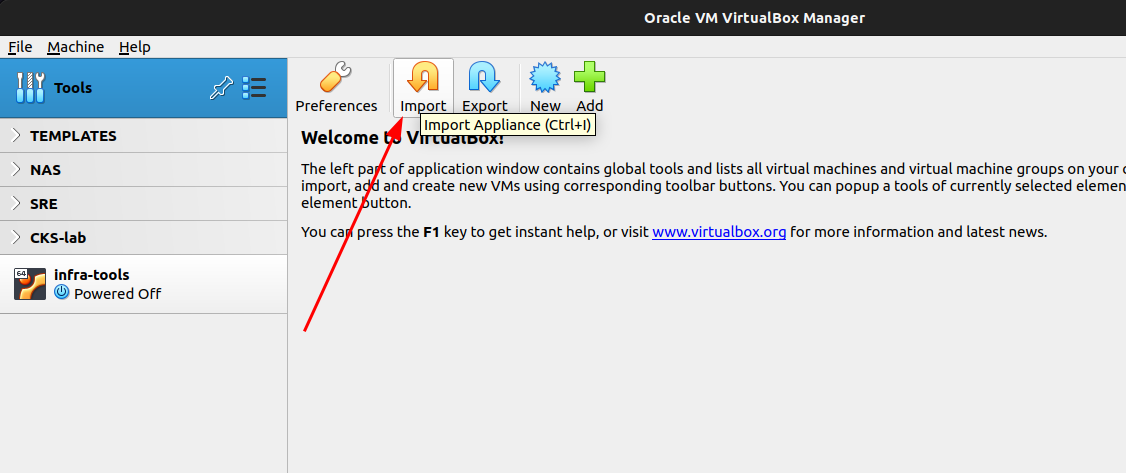
From the welcome page, click “Import”
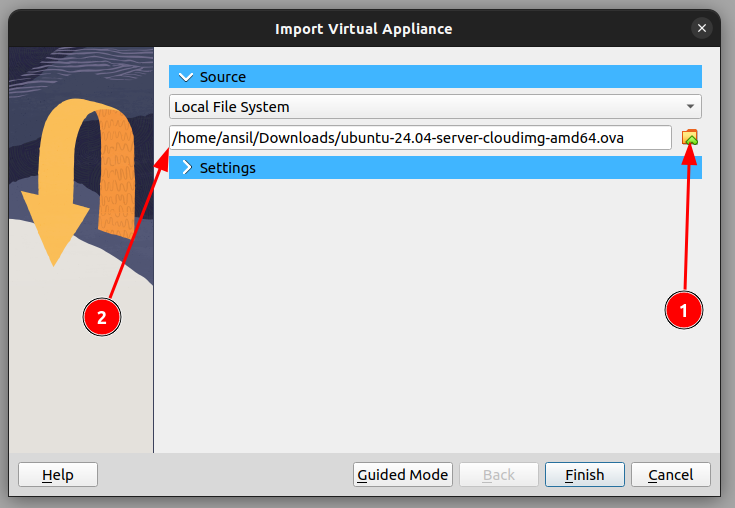
Select the OVA as source
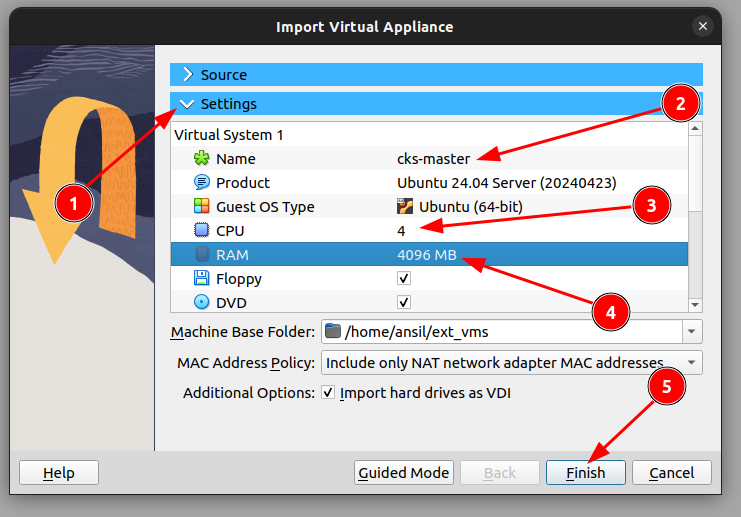
- Click Settings
- Change name
- Increase CPU to 4
- Increase RAM to 4GB
- Click Finish
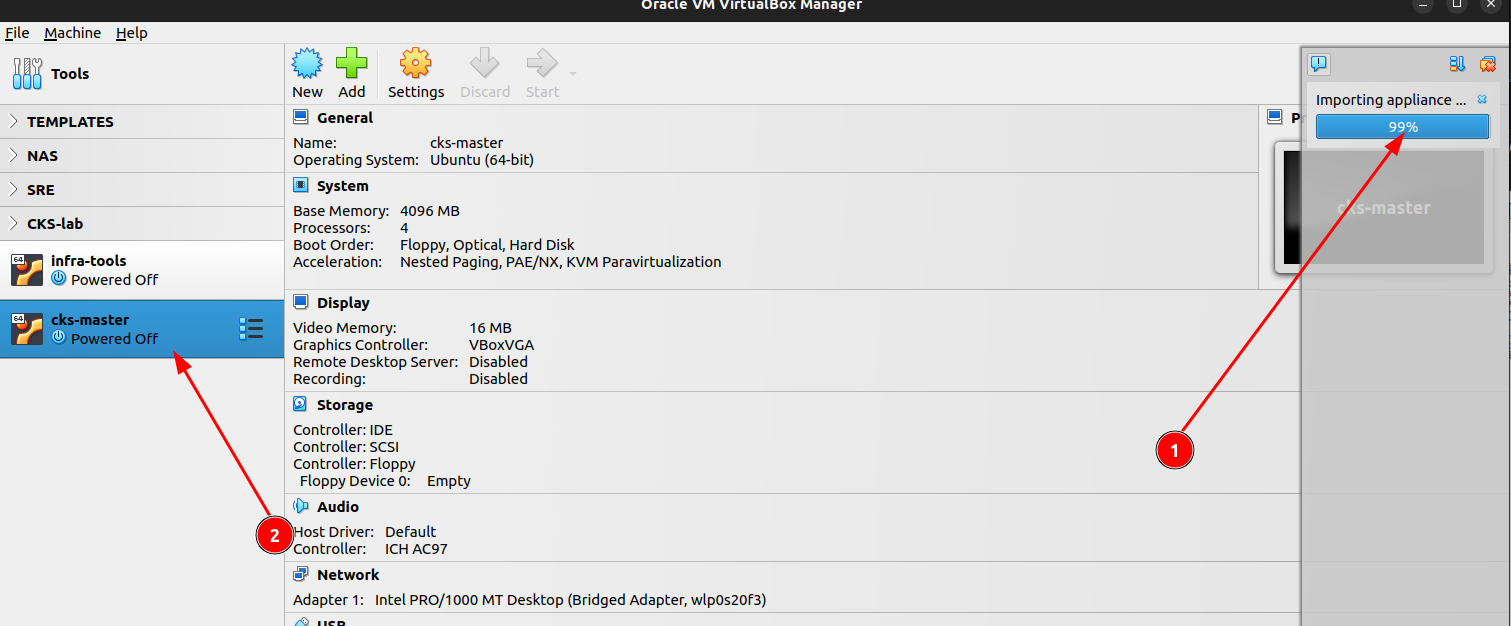
- Wait for import to complete
- Click the VM
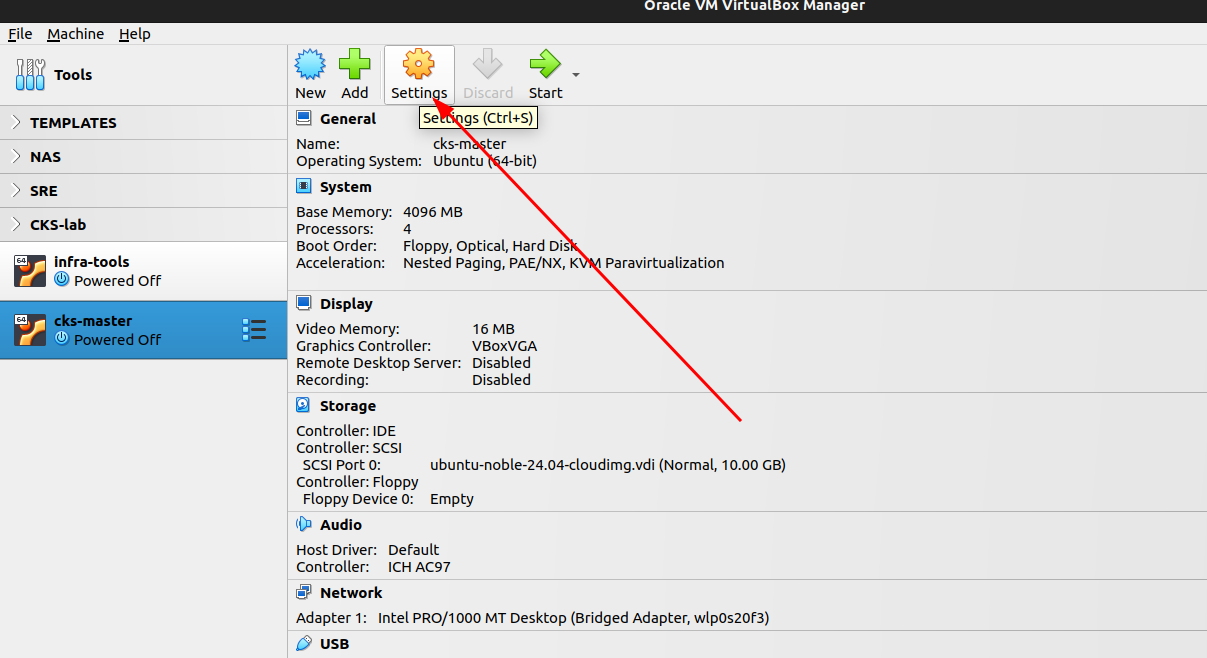

- Go to settings of the VM.
- Add an IDE disk to Storage
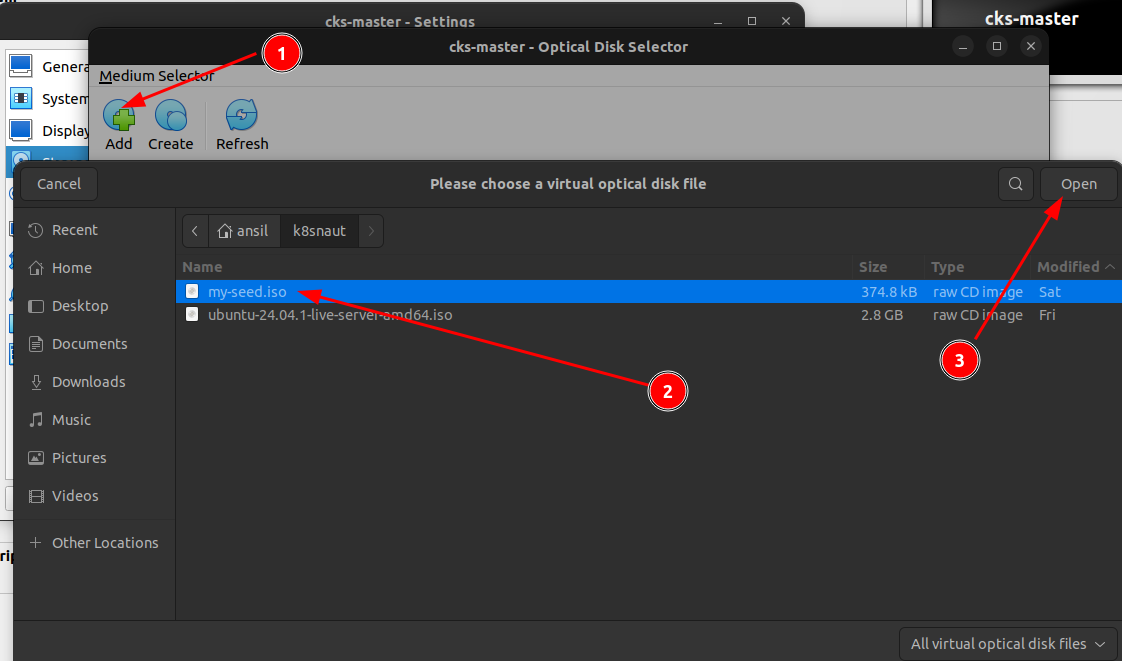
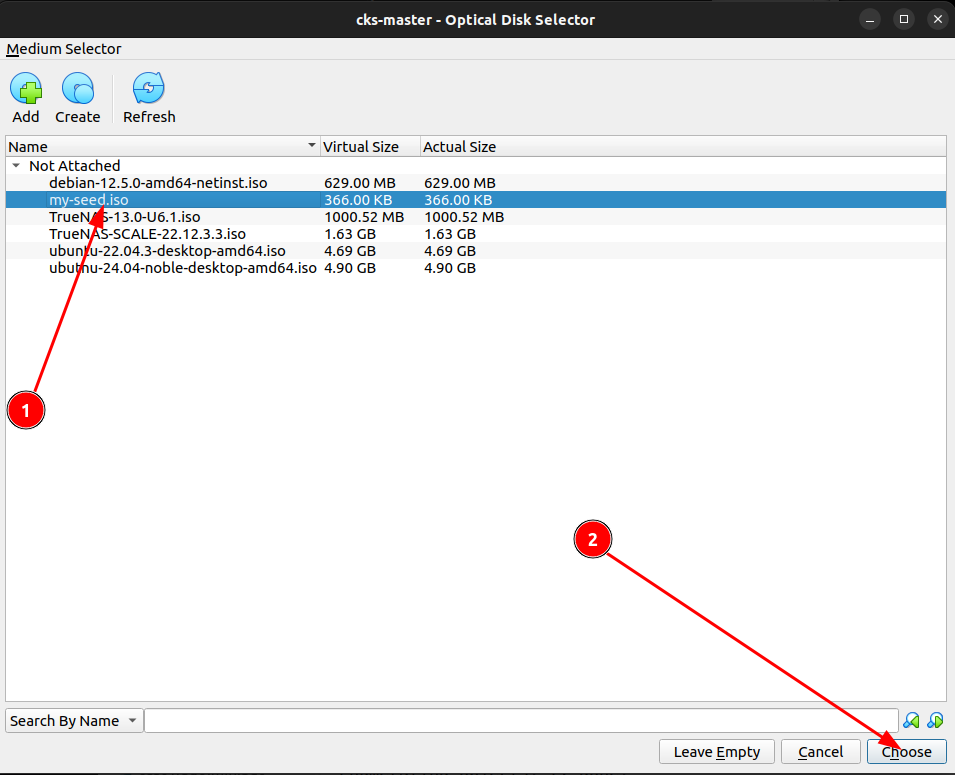
Attach the my-seed.iso to the CDROM
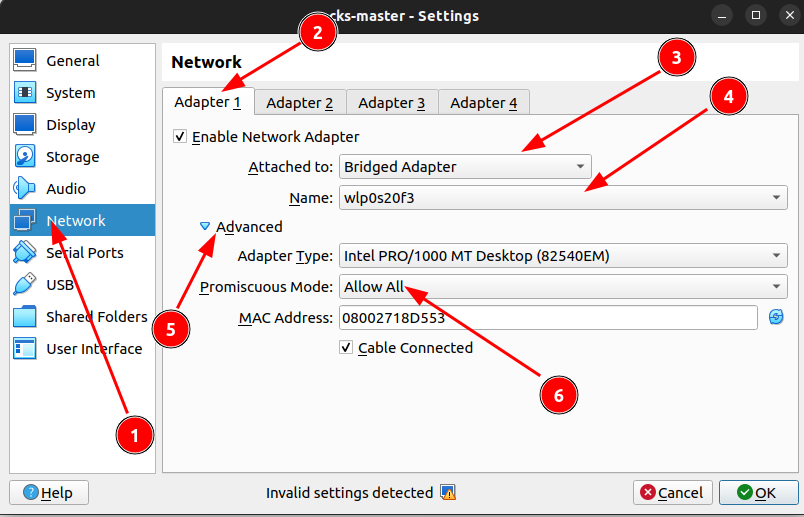
Change the network settings by selecting your Wifi adapter as Bridge device for the VM and enable promiscuous mode.
Repeat the same steps for a worker node
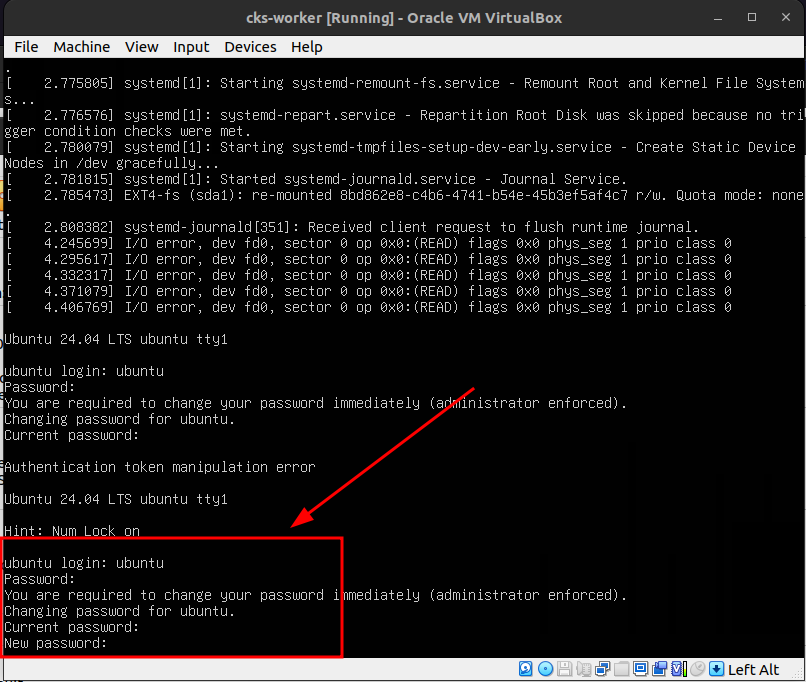
Power-on the VMs and wait for the prompt to set new password
Note:- Password is “ubuntu”
Since you are connected to the same network where wifi is available, IP address will be set on both VMs.
Execute
ip aon each VMs to see the IP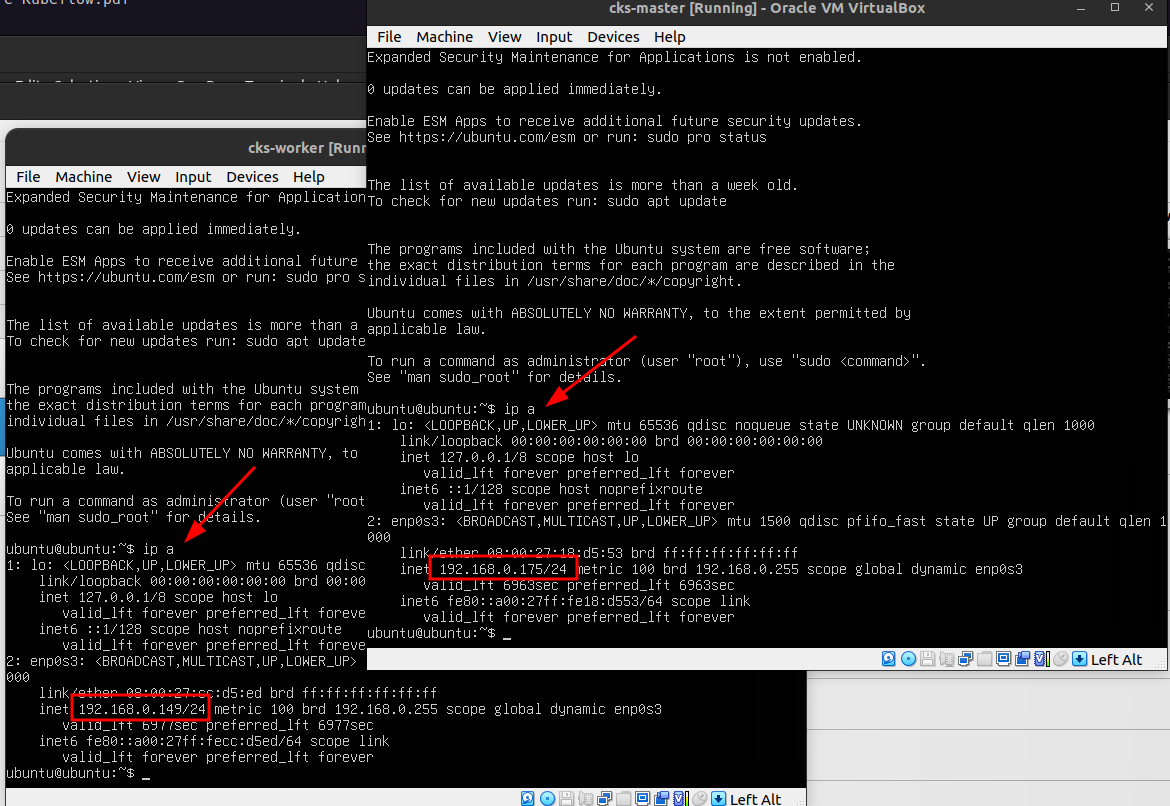
Now you can SSH into the nodes from you local system using the IP and the credentials.
Better setup password-less auth
ssh-copy-id ubuntu@192.168.0.175
ssh-copy-id ubuntu@192.168.0.149
Set hostnames
sudo hostnamectl set-hostname cks-mastersudo hostnamectl set-hostname cks-worker